

The advanced settings menu gives access to additional parameters to configure MIPAR’s Deep Learning model training. These settings can help tune the trainer for model accuracy, model robustness, and training performance. To access the Advanced Settings menu, select the training settings icon (wrench) and select the Advanced Settings button (1).
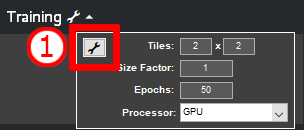
Advanced Settings Window
 |
 |
 |
2. Model Parameters
Model Depth
Number of network layers (building blocks). More layers can help the model learn larger, more complex features, but risk overfitting, or memorizing the data set instead of general learning, and may lose the fine details within the features.
Filter Size
Window for how many surrounding pixels the model considers when analyzing a pixel. A larger window will result in more awareness of the neighboring environment but may lose the fine details within the features.
Model Type
Allows for choosing between the SegNet and U-Net model architectures. Switching from SegNet to U-Net will reduce the selected Initial Learning Rate by a factor of 10, while switching from U-Net to SegNet will increase the selected Initial Learning Rate by a factor of 10.
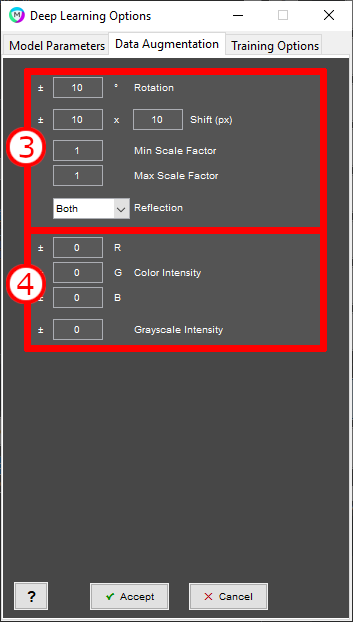
3. Data Augmentation: Geometry
Rotation
Rotate the images a random number of degrees clockwise or counterclockwise up to the specified value to simulate variation in feature orientation.
Shift
Translate the images a random number of pixels in the x and y directions up to the specified value to simulate variation in feature location.
Min and Max Scale Factors
Resize the image in a range between the minimum and the maximum to simulate variation in feature size or resolution.
Reflection
Randomly flip the image over the specified axes to simulate variation in feature reflected duplication.
4. Data Augmentation: Color and Grayscale Intensity
Color Intensity
Randomly shift the color channel intensities to simulate variation in feature color. Channel intensity shift can be defined individually, using the R, G and B entries.
Grayscale Intensity
Randomly shift the overall image brightness to simulate variation in feature exposure.
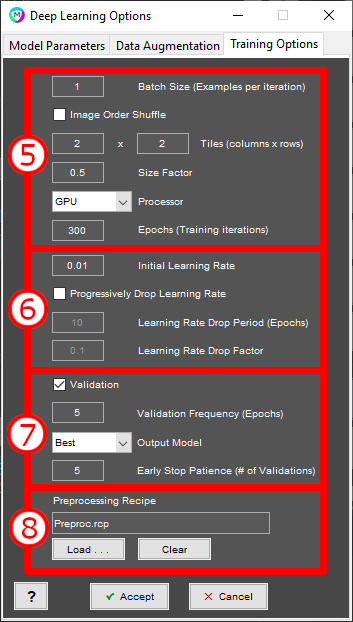
5. Training Options: General Settings
Batch Size
Define number of images (or tiles, if tiling is used) sent through the network trainer at once. A lower number can result in suboptimal detection accuracy and GPU resource utilization, a higher number ran result in overfitting (data memorization) and GPU resource overflow.
Image Order Shuffle
Mitigates image dropping if the batch size is not divisible into the number of images (or tiles, if tiling is used). This setting also helps reduce overfitting.
Tiles X and Y
Define the number of tiles the images should be divided into before being passed into the trainer. Defined by the number of tiles in the X and Y axis. Helps increase the training data set and can be used to reduce GPU memory usage.
Size Factor
Resizes the images before passing them into the model trainer to reduce GPU memory usage.
Processor
Select the training hardware. A dedicated Nvidia GPU is strongly recommended. See Deep Learning hardware requirements.
Epochs
Number of times to iterate through all images in the training set. If the value is too low, the model will not converge to anything useful. If the epochs are too high and early stop is not turned on, the training can run longer than needed or risk overfitting.
6. Training Options: Learning Rate
Initial Learning Rate
Defines how much a model changes each time it is presented with training data. Values that are too high may result in failure to converge.
Progressively Drop Learning Rate
Recommended for the model training to reach maximum accuracy, but can result in longer training times.
Learning Rate Drop Period
Defines how often the learning rate is adjusted, expressed in number of epochs.
Learning Rate Drop Factor
Defines the rate at which the Learning Rate is reduced.
7. Training Options: Validation
Validation
Enables checking of model accuracy on all images every specified number epochs, at the cost of increased training time. Model accuracy is reported in the Session Processor once the training has started. (9)
Validation Frequency
Defines how often the model accuracy is checked, expressed in number of epochs.
Output Model
Best: returns the model that resulted in the highest accuracy score.
Last: returns the model that was returned at the end of the training.
Early Stop Patience
Will stop the model training early if the model training accuracy has reached an asymptote, defined by a number of validations to be considered when concluding a maximum accuracy.
8. Training Options: Preprocessing Recipe
Load Recipe
Select a recipe to apply to the images before training begins. For example, to reduce noise or increase contrast of the features of interest. Recipes cannot have Layers or Measurements. It is not recommended for the recipe to have a crop or resize step.

Model Accuracy
What the Accuracy Metric Measures
The Accuracy metric during Deep Learning training provides a straightforward measure of how well your model is performing. It calculates the percentage of labeled pixels that your model correctly classifies.
How Accuracy Is Calculated
With validation enabled, after each specified number of epochs:
- Your model processes each pixel in your dataset and produces a set of scores (one for each possible class)
- For each pixel, the class with the highest score is selected as the predicted class
- For pixels which have been labelled for training, the system compares this predicted class with the actual class label
- The Accuracy Metric counts how many predictions match the actual labels
- This count is divided by the total number of labelled pixels and multiplied by 100 to give you a percentage
For example, if your model correctly classifies 900 out of 1,000 labelled pixels, the Accuracy Metric would report 90%.
Interpreting the Accuracy Percentage
The accuracy percentage shown after each specified number of epochs represents how well your model recognizes patterns in the data it has seen. A higher percentage indicates better performance, with 100% meaning perfect classification.
However, this accuracy is calculated on the same data used for training. This means the metric shows how well your model has learned the training data, but doesn’t necessarily indicate how well it will perform on new, unseen data. The ability to validate on data excluded from the training set is a planned feature for a future release.
Need more help with this?
Chat with an expert now ››
