


After a user added his profile picture, he can edit his profile picture to find the best fit inside the circular window.
To edit profile picture, please follow the next steps:
1. Navigate to the “My Profile” section on the EPC WebApp

2. Follow the steps to Add User Profile Picture
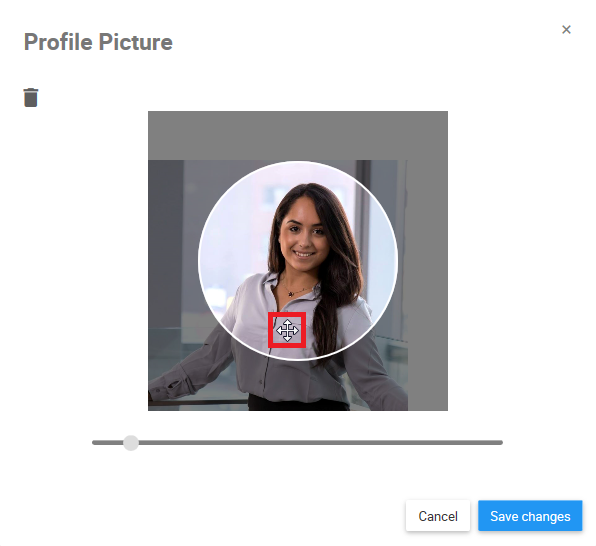
3. Once the picture is added, users can move around the picture using the  button
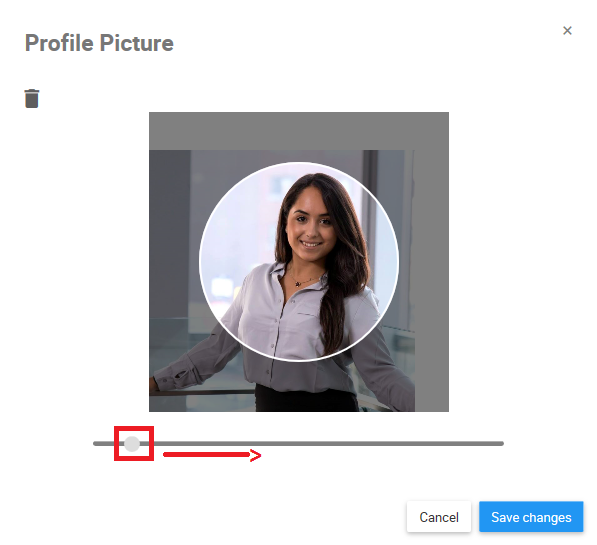
4. To zoom in the picture, click on the  button and drag it to the right
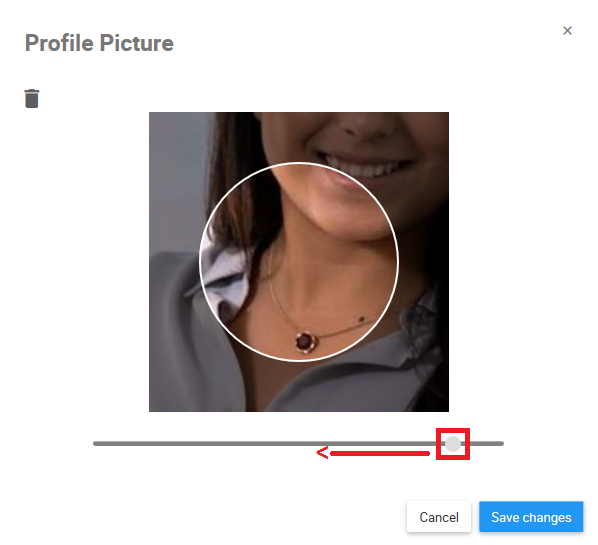
5. To zoom out the picture, click on the button and drag it to the left
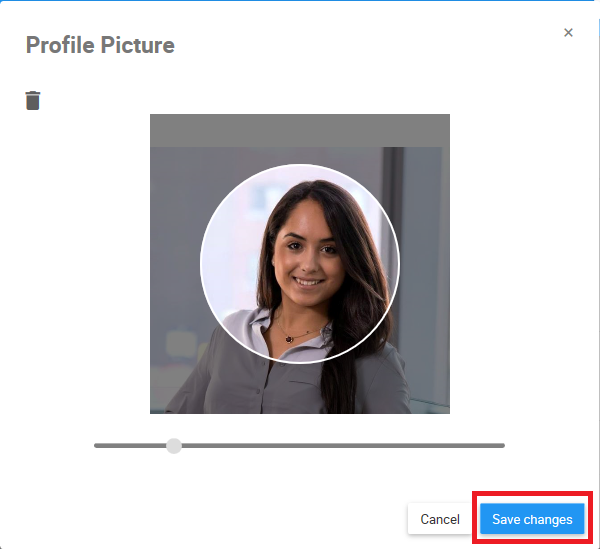
6. Once you finish editing, click on the  button to save changes
Need more help with this?
Visit the Support Portal