

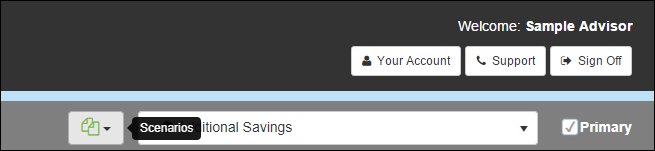
RazorPlan allows client files to contain multiple scenarios for users to be able to illustrate different client situations. These scenarios can then be compared to show changes to lifestyle and net worth between scenarios.
Scenario Navigation
By default, whenever you create a new client file a “Base Data” scenario will be automatically created and set as your primary scenario. This scenario acts as the starting point of your financial analysis. From here you can enter your client data and begin to analyze the client situation.
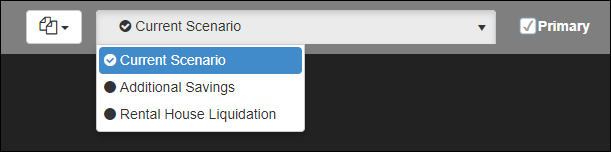
You can flip between scenarios from any screen within the software through the Scenario drop-down in the top right corner. This drop-down will list all of the scenarios that are currently loaded in the active client file. You can load any one of these scenarios by selecting it from the list. The data will load and the system will recalculate.
Each client file can have any number of scenarios added. To establish which file is your primary scenario load the scenario and select the  check-box. By setting your primary scenario you are telling the system which scenario to load when opening this client file in the future. You are also establishing which scenario is your main working scenario to eliminate any confusion.
Copy Scenario
As you begin to formulate recommendations, new scenarios can be created allowing you to test different recommendations within the client data. To create a new scenario, click the  button in the top right corner and select
  .
.
You can enter a new scenario name and description of the scenario you are creating. The software will create a duplicate version of the scenario that is currently loaded.
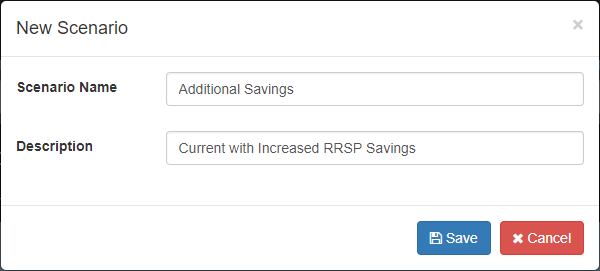
The Name and Description of a scenario can be changed after a scenario is created by going to the Client Information data entry tab in Step 1 Personal Information.
Forward Scenario
The Forward function will send a copy of the active scenario to another RazorPlan account. This is useful in situations where you require assistance, a second opinion, or when working with another advisor. Your options are to forward to Support, forward to another User, and whether to include client name and address information.
To Forward a scenario click the  button. The Forward Scenario window will appear.
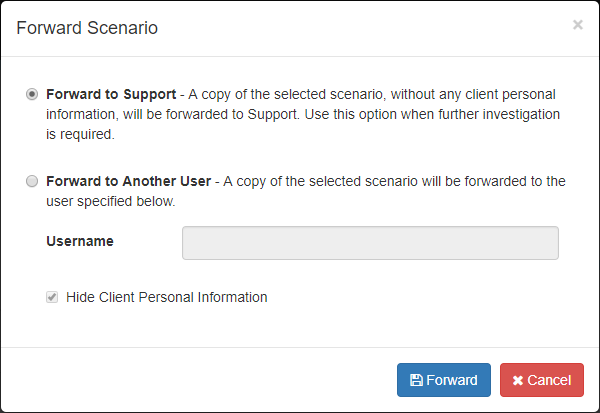
Select to send the scenario to support or to send to another user and enter the email username of this user, then click  .
.
Delete Scenario
The delete function will allow you to delete the currently selected scenario. Once a scenario is selected click  .
.
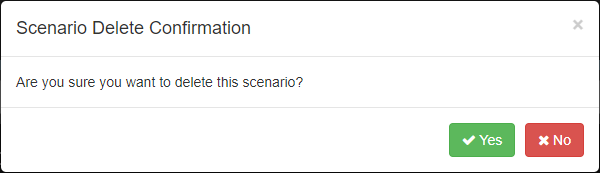
To confirm deletion click  .
.
Combine Clients
In older versions of RazorPlan you did not have the ability to create scenarios within a client file. Instead you would create copies of client files and run multiple versions of the same client. If you have multiple versions of a client file you can combine these into one using the “Combine Clients” selection. To combine client files, click  .
.
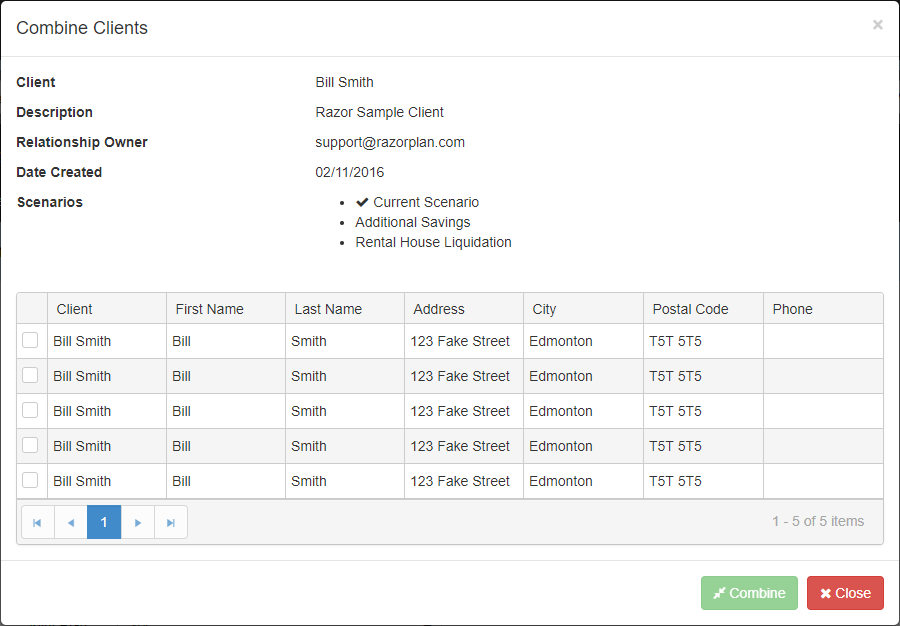
The “Combine Clients” window will display details about the active client file across the top and list all eligible client files across the bottom. This list will be filtered to only include files that have the same client names and dates of birth. Select the file you wish to merge with the current file. Once selected click the  button.
Tutorial
Besoin d'aide supplémentaire avec ce sujet?
Contact Razor Support