

Adding text:
- Select the Text button in Flexijet Stone, or Flexijet’s screen
![]()

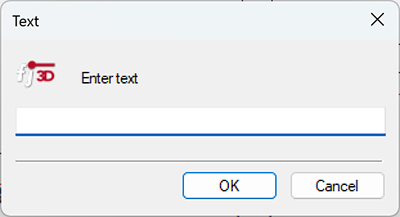
- Enter the text in the dialog window
![Enter text dialog window]()
- Enter or click to set the rotation angle (To specify the angle of the text). In Touch-mode (or in PC-mode calculator input), specify degrees. 0 degrees is horizontal.
- Now, place the text by clicking, entering coordinates, or measuring with Flexijet. Press the ‘Enter’ key or the ‘Confirm’ button.
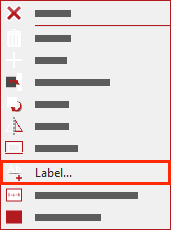
Shortcut: ‘Label’
- Text can also inserted with R-click > ‘Label’. Type the text and press ‘Enter’ or ‘Confirm’
![]()
Editing text:
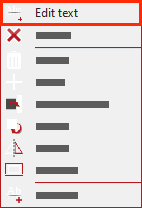
- Right Click on the text to be edited and choose ‘Edit text’
![]()
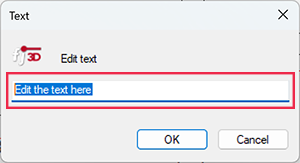
- Edit the text in the dialog box
![Edit text dialog window]()
Changing text size and font:
The size of text can be changed individually by selecting it and changing the size under ‘Properties.’
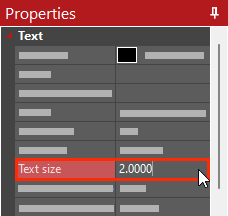
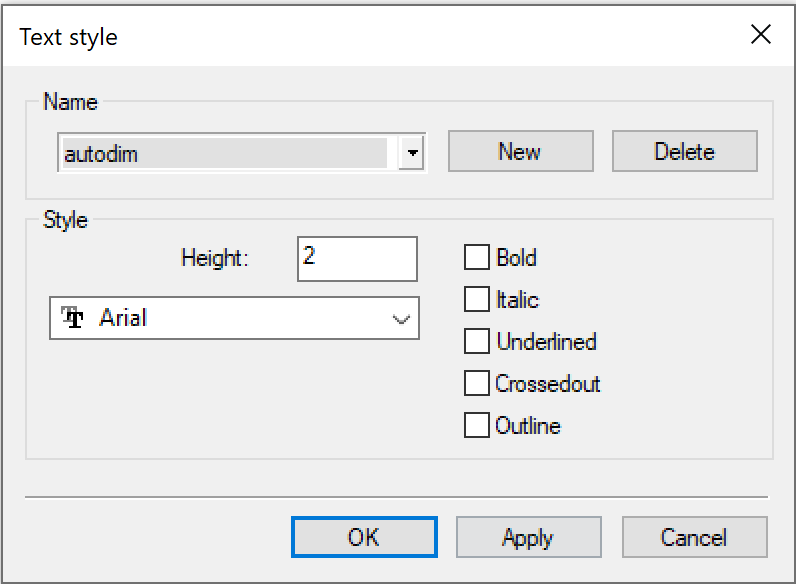
Or, the font, size, color, and emphasis of text can be set using the ‘Text Style’ window.
Different styles can be set and used as required in drawings to allow for easy annotation.
Changing a Text Style will change all elements in your current project using this text style.
To change the size of the text,
- Go to ‘Set Text Style’ on the ‘Draw’ ribbon
![]()
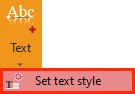
- Select the text style to be modified from the list. NOTE: STANDARD is the default Text and Label format, while Autodim is the default dimension format.
![Text Style window]()
Feedback
Copyright © 2025 Flexijet GmbH
—
Powered by 
Post your comment on this topic.