


1. Navigate to the Details View of the “Develop Job Description” process, and click on the  button to navigate to the Edit Process window.
2. Navigate to the “Which Documents are used?” section, type the name of the document you want to add, and select it to assign it to the process. Click on the  button to save the changes made to the process.

3. The document will now be displayed in the Details View of the process “Develop Job Description” under the section “Documents.” Click on the  icon to see the documents associated to the process.
*The name of the document is in blue because it is a link; when users click on it, they can navigate to the document directly from the process Details View. The  icons are available next to the document, allowing users to download the document and preview it.
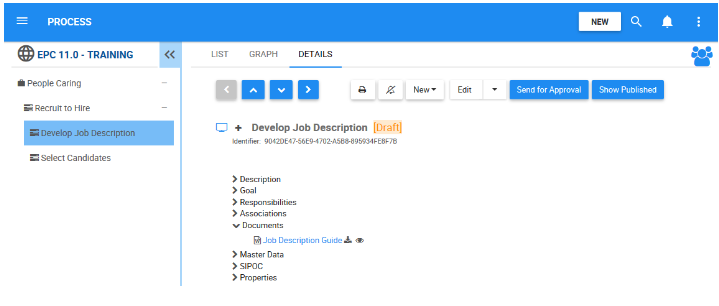
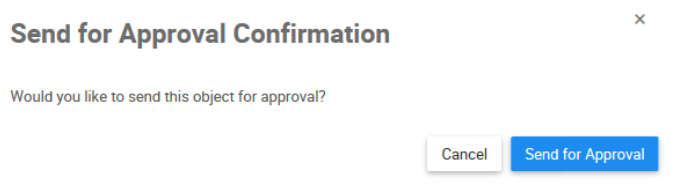
4. The button  is now available on the toolbar for the “Develop Job Description” process. This button appeared because this process has an Approval Cycle that we previously set on the process. Click on the button, and send the process for approval. A window will be generated requesting your confirmation to send this process for approval, click on the button
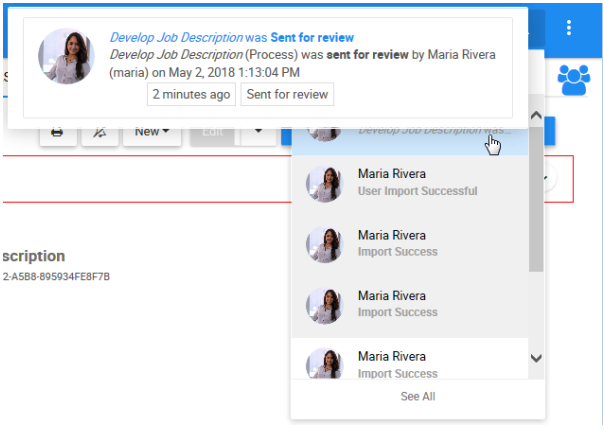
5. Since your user is the “HR Manager,” and we previously set the “HR Manager” as the approver, you now automatically received a notification letting you know you need to approve or reject the changes made to the process. The notification appears on the top-right of your EPC page with this icon  . Click on the icon to see your notifications.
Besoin d'aide supplémentaire avec ce sujet?
Visit the Support Portal