


To add a profile picture to your user, please follow the next steps:
1. Navigate to “My Profile” section on the EPC WebApp

2. Click on the  button

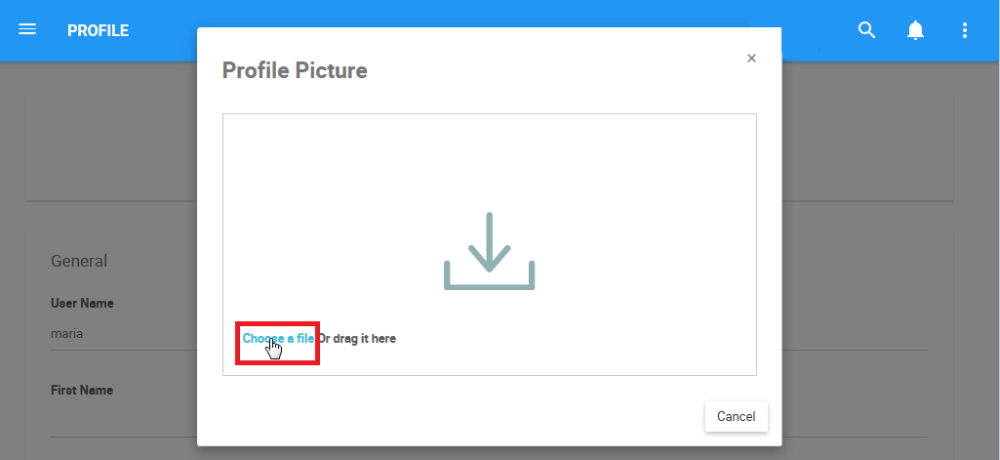
3. The following pop-up window will appear

4. To upload a picture, users can “Choose a file” or “Drag a file”
i) To choose a file click on “Choose a file.” Locate the picture you wish to upload and click on “Open”

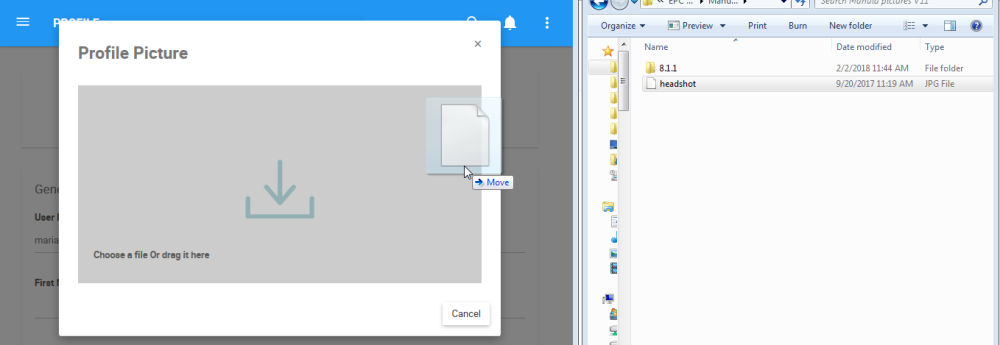
ii) To drag and drop the file, open the folder where the file is located and drag the file to the  box
box
5. The user profile picture will pop-up on the window

6. Click on  to save the new profile picture

7. The new profile picture will appear on top of the “My Profile” page

Need more help with this?
Visit the Support Portal