


Approval cycles often involve multiple individuals before changes can be implemented. This is often the case as business activities that are subject to change may affect multiple different roles and resources, requiring their consent prior to change. These approval cycles can vary depending on the organization, and the importance of the request being made. As such, the EPC supports both parallel and serial approval cycles.
| Approval Cycle | Description |
|---|---|
| Parallel | All approval requests are simultaneously sent to approvers. The changes will be approved once all approvers have approved. E.g. A request for approval is sent out to a controller, the VP Finance, and the CEO simultaneously |
| Serial | Approval cycle following a sequential of approvers. Approval requests are first sent to the initial approver. Upon approval, a secondary approval request will be sent to the following approver and so on. E.g. First approval request sent to a controller, then the VP Finance and finally the CEO. |
Users can access this activity:
1. Through their notifications
2. Through their My Actions Widget
Participating in an Approval Cycle
1. After an EPC Modeler has drafted a change to a process and sent this process in for review, users assigned as approver will receive a notification within the EPC Web App  . Until fully approved, a Process Improvement will be “Pending”
2. Users can navigate to their “My Pending Approvals” of the specific object by selecting the notification

Or through their “My Actions” Widget
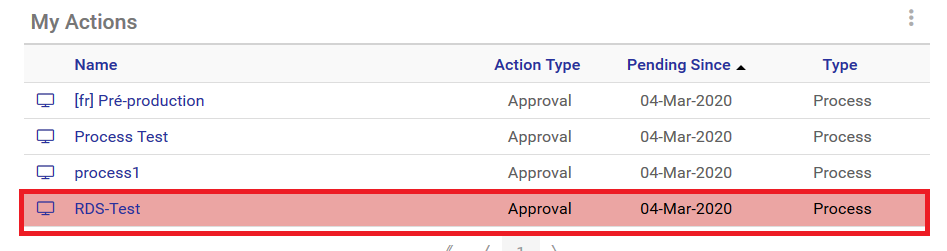
3. Users will be navigated to the item’s details page
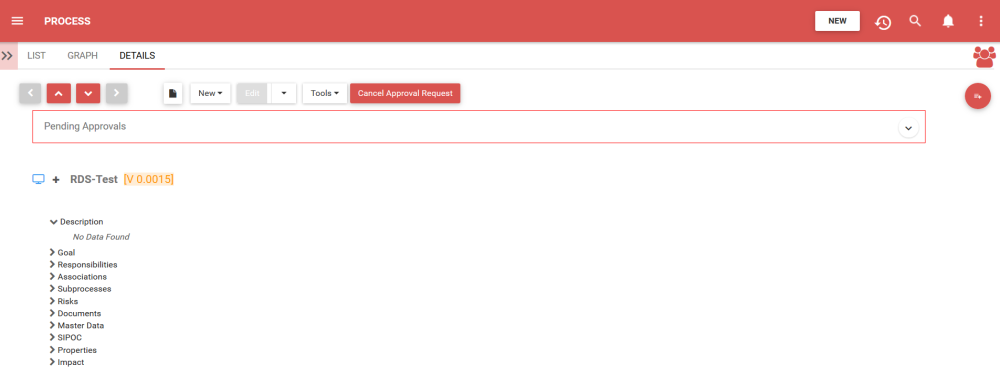
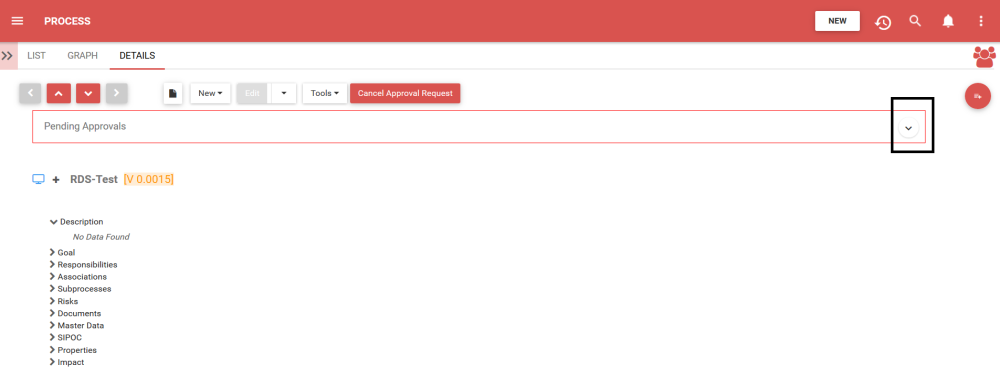
4. To expand the pending approval, select the  icon
icon
5. This will expand the Approval Request, providing the user with additional information about the proposed change
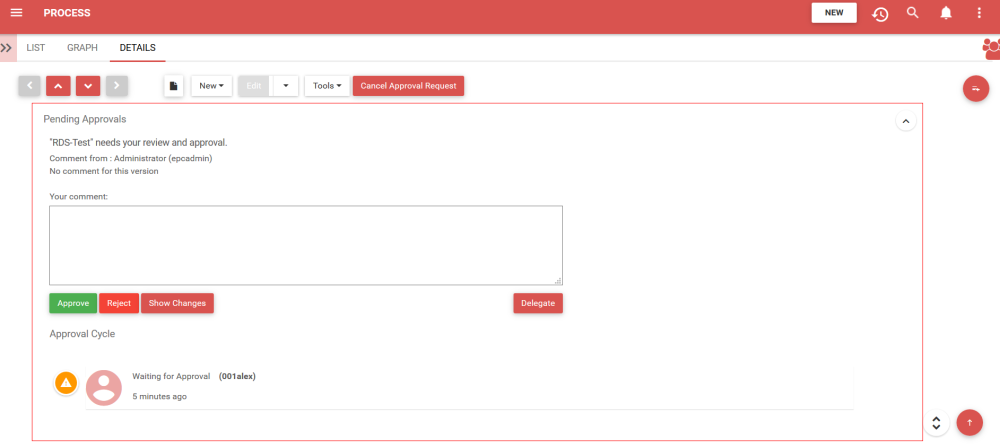
6. For further details regarding the process change, select the  button or can select the attachment provided by the EPC Modeler (if attachment provided).
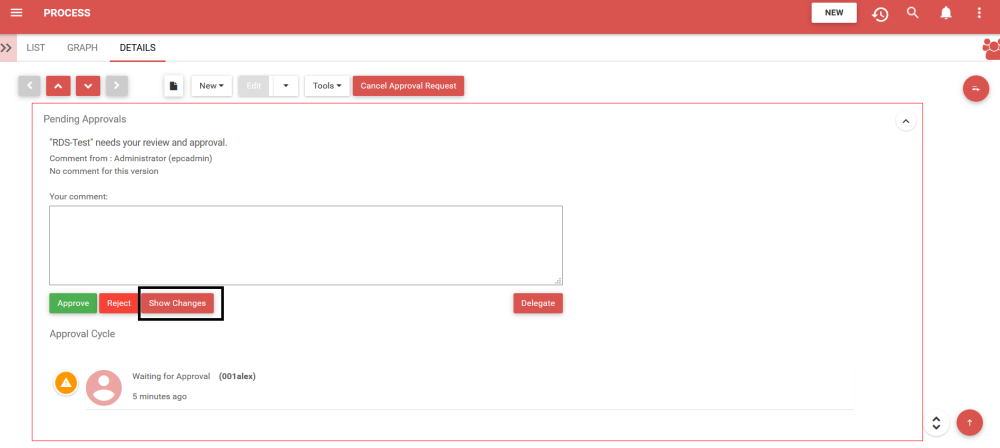
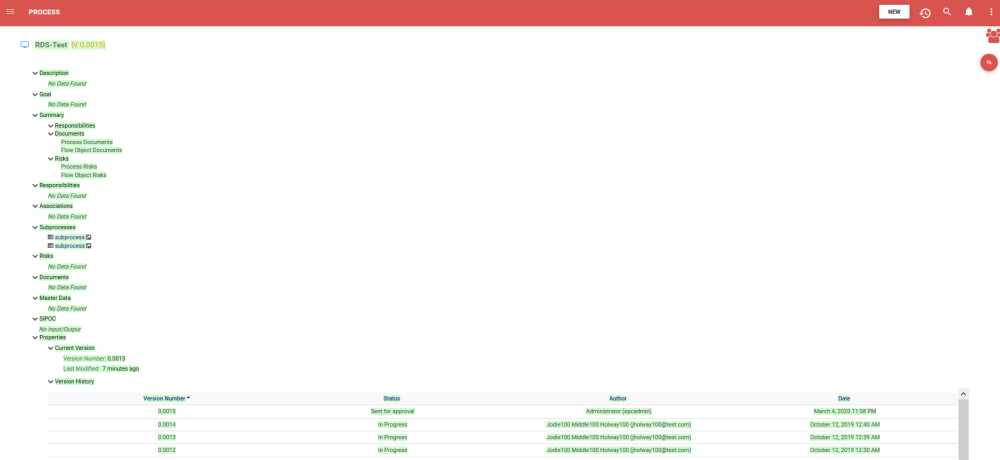
7. After selecting , the changes will be displayed on the page. The new changes will be displayed in green and the old versions will be displayed in red. As seen below, the changes to the properties are displayed.
8. Navigate to the “Graph” tab
9. Expand the “My Pending Approval” of the specific object by selecting the  icon
icon
10. Select the option
11. On the lower part of your screen, 2 graphs will be generated with the old and newly proposed process improvement.

12. After analyzing the proposed improvements, users can either  or
or  the process improvement. Once a user has acted upon the request, the Pending Approval will move to the next phase of the approval cycle.
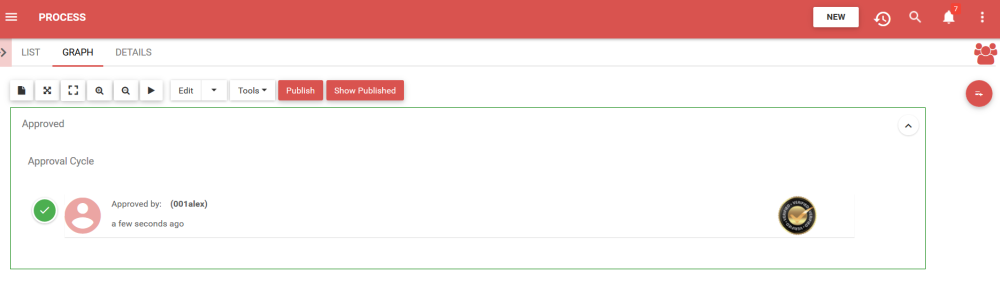
13. Once Approved, the object will not be automatically published, it will have to be done manually.
Need more help with this?
Visit the Support Portal