


Sorting allows users to classify processes based on selected criteria.
The following are the fields that users can use when sorting through Processes in List View:
| Filter | Details |
|---|---|
| Sequence # | Allows users to sort actions chronologically by associated sequence number |
| Name | Allows users to sort actions by a key number or word within business object names |
| Type | Allows users to sort action by their specific object type |
| Action Type | Allows users by their specific object type |
| Pending Since | Allows users to sort actions chronologically from the pending date |
| Due Date | Allows users to sort processes chronologically by the due date |
How to use “Sorting” Function
1. Navigate to the To Do Module
2. Navigate Cursor to desired Category
3. Click on the Category
1-Click will sort the Category in Ascending order, reflected by 
2-Clicks will sort the Category in Descending order, reflected by 
3-Clicks will Remove the sorting action
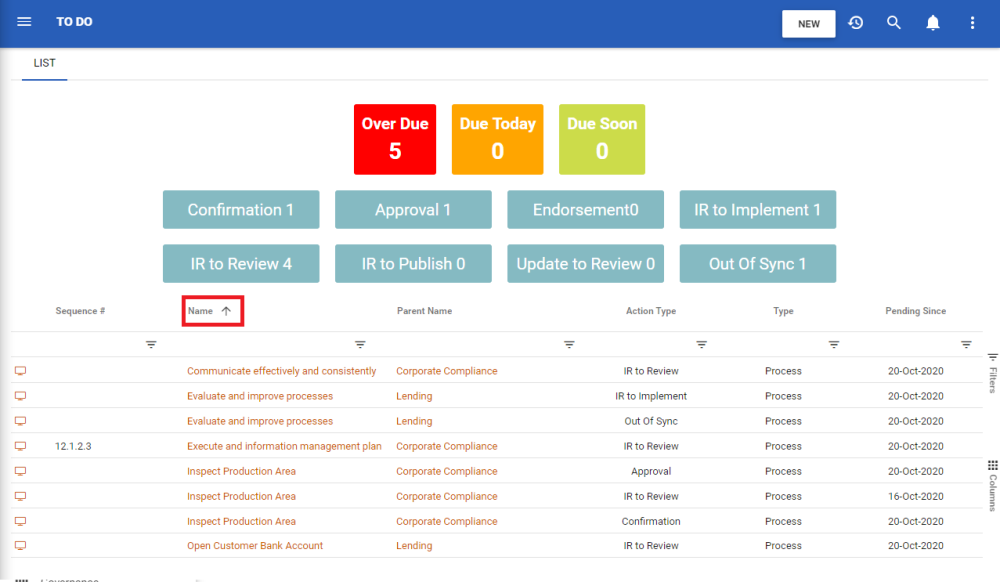
Ascending Example: The Name column is sorted in ascending order. Notice the object name are listed as “1, 2, 3, A, B, C”.
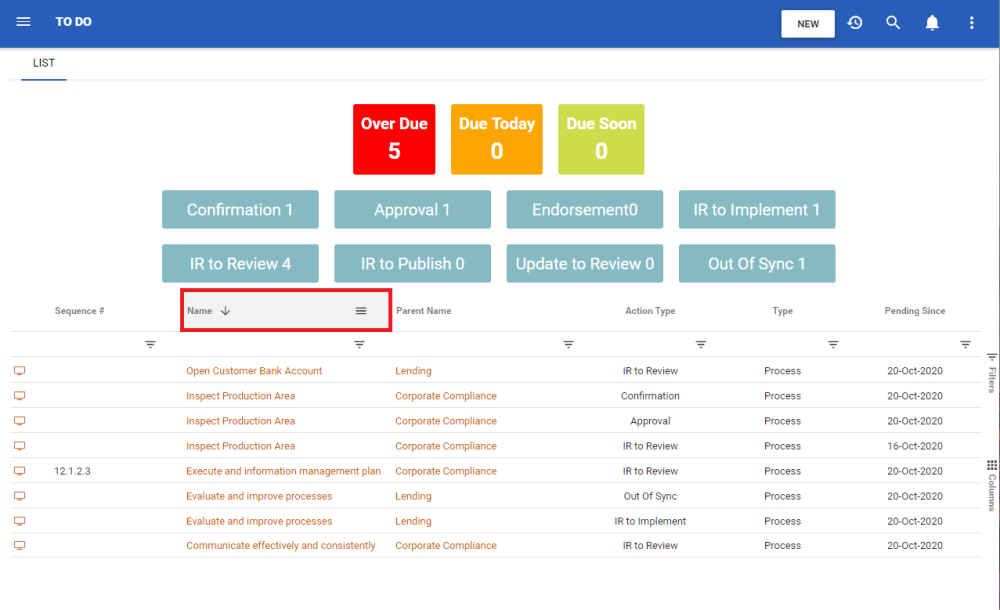
Descending Example: The Name column is sorted in descending order. Notice the object are listed as “C, B, A, 3, 2, 1”.
Need more help with this?
Visit the Support Portal