


The My Actions Widget allows users to view a list of items they are actively engaging with. Customizing “My Actions” will allow users to view multiple different actions a user must perform in one or multiple Widget windows based on personal preference.
Please follow the instructions below to customize the “My Actions” Widget.
1. Upon login, you will be greeted with the following page:
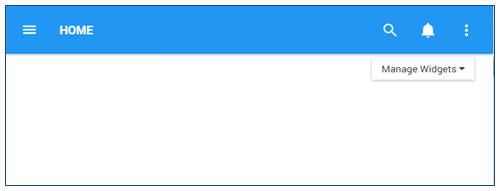
2. To add widgets to your home page, navigate to the the  button and select the widget you want to add from the Dashboard Manager
3. Once the “My Actions” Widget has been added to the Home page, select the  icon at the top right corner of the Widget and select the
  button.
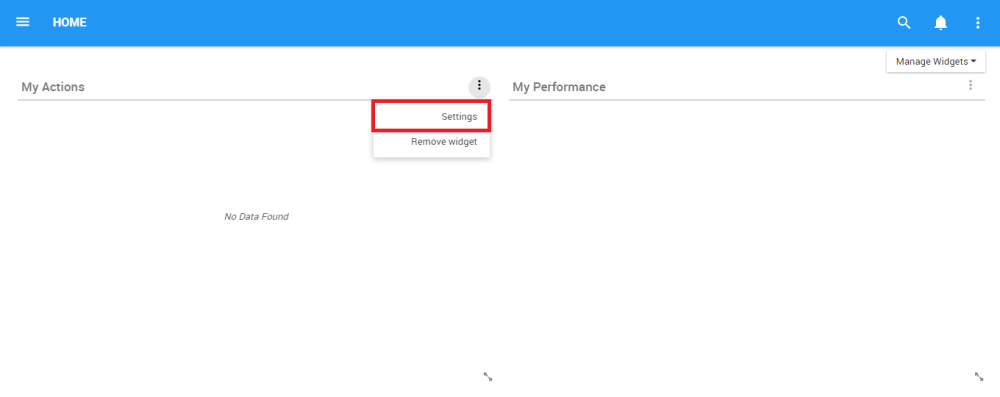
4. Users will have 3 major fields that can be edited in the “My Actions” Widget

5. After customizing the settings, click on the  button to save the changes made.
My Actions Widget Settings Parameters
In this page there are two variables that a user can set in order to customize to improve user experience.
| Item | Setting | Purpose |
|---|---|---|
| A | Name | Allows user to customize the title of Widget |
| B | Display the Following Pending Items | Display specific actions a user is responsible to take |
| C | Hide Name | Hide the name of the widget |
A. Name: The “Name” Section will allow a user to customize the name of the Widget. To edit the “Name” section, please follow the instructions below
i. Navigate cursor over existing name box
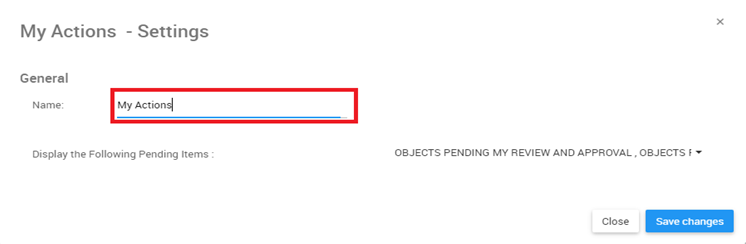
ii. Edit name by selecting name box and typing in desired name
B. Display the Following Pending Items: This function allows users to view their different actions and pending approvals.
i. Navigate cursor over viewing panel
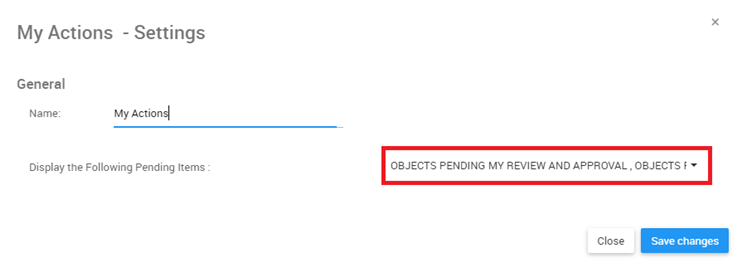
ii. Click on the task bar, which will generate a drop-down menu

iii. Select/Deselect desired object(s) to be featured in Widget window by navigating cursor and clicking on respective objects. Additionally, the drop-down menu features  and
and  buttons that can be used for mass selection.
Actions
| Action | Description |
|---|---|
| Approval | For approval cycles on an object. The user must be assigned as an approver. |
| Confirmation | For newly published objects on which the user has a RASCI-VS value. |
| Endorsement | For endorsement cycles on an object. The user must be assigned as an endorser. |
| IR to Implement | For IRs needing implementation. The user must be assigned as Implementer and the status of the IR must be “To Implement” |
| IR to Publish | For IR changes needing publication. The user must be assigned as Implementer and the status of the IR must be “Implemented” |
| IR to Review | For IRs needing approval. The user must be Accountable on the object and there must be a new IR on the object |
| New Revision Update to Review | For objects that have changed status from Published to In Progress. The user must be assigned as Implementer on the object |
| Out of Sync | For objects that are out of sync. See Data Harmonization for more details. |
Need more help with this?
Visit the Support Portal