

To watch a video on this topic CLICK HERE
To access workbaskets and workflow functions, from One Look:
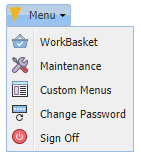
1. Click the Menu button, select WorkBasket from the drop down list.
(Workbasket access is based on the One Look user id.)
The user is automatically taken to Workflow Inquiry/Workflow Information where they will see a graphical representation of routing profile counts and a list of workbasket items.
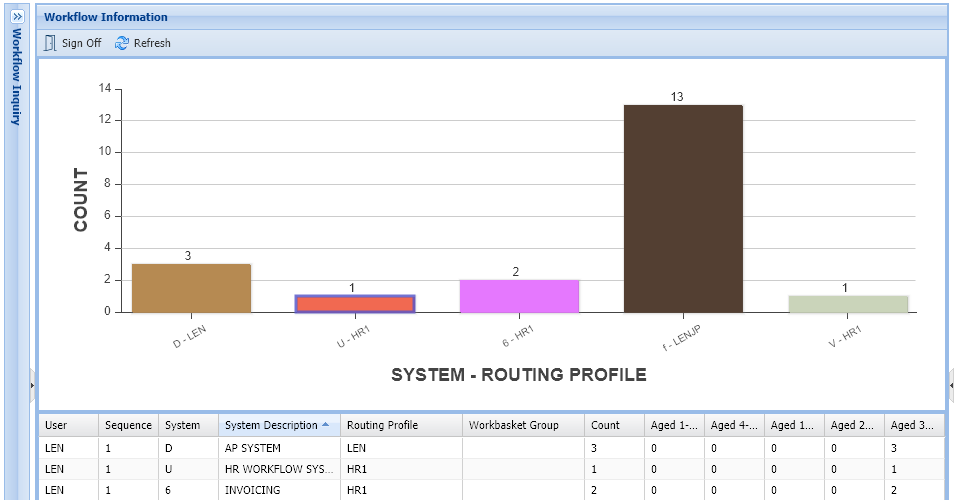 |
*The graph can be personalized by right-clicking on the grid at the bottom of the screen.
The graph default color is Deep Blue. 
2. Double-click a record to see a list of documents contained within the workbasket.
3. Work with the documents that have been routed to the workbasket by double-clicking a record or enable the checkbox under the Flags column to select multiple record(s) then click  .
.
*Display Checked Items is found under Display Options in newer versions of One Look.

 |
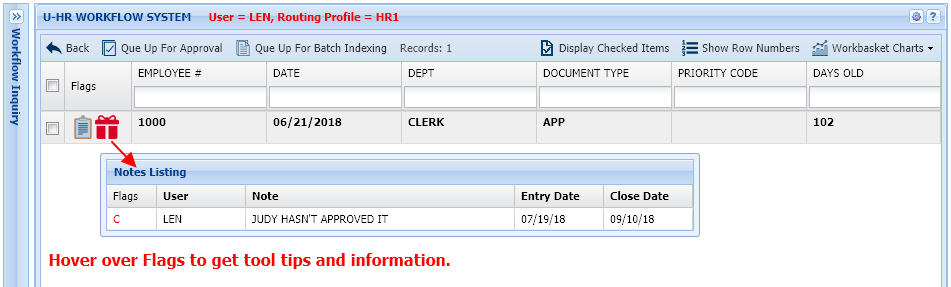
Hover over corresponding Flags to get tooltips and details including Notes, Packages, Call Back Reminders.
 |
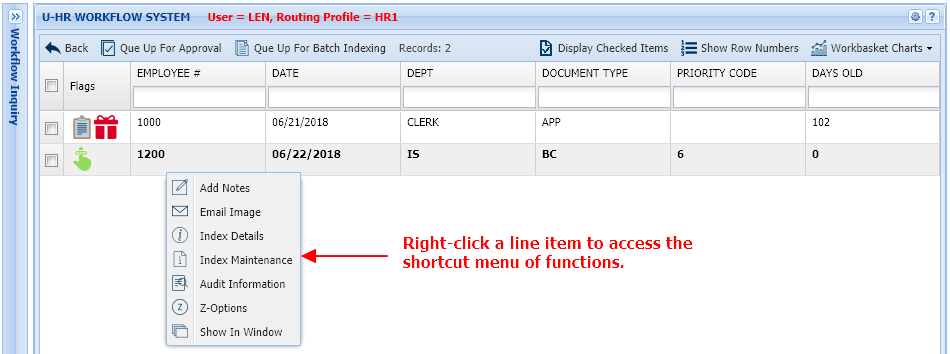
Right-click an item to access additional functions such as Note, Index, and Audit information.
 |
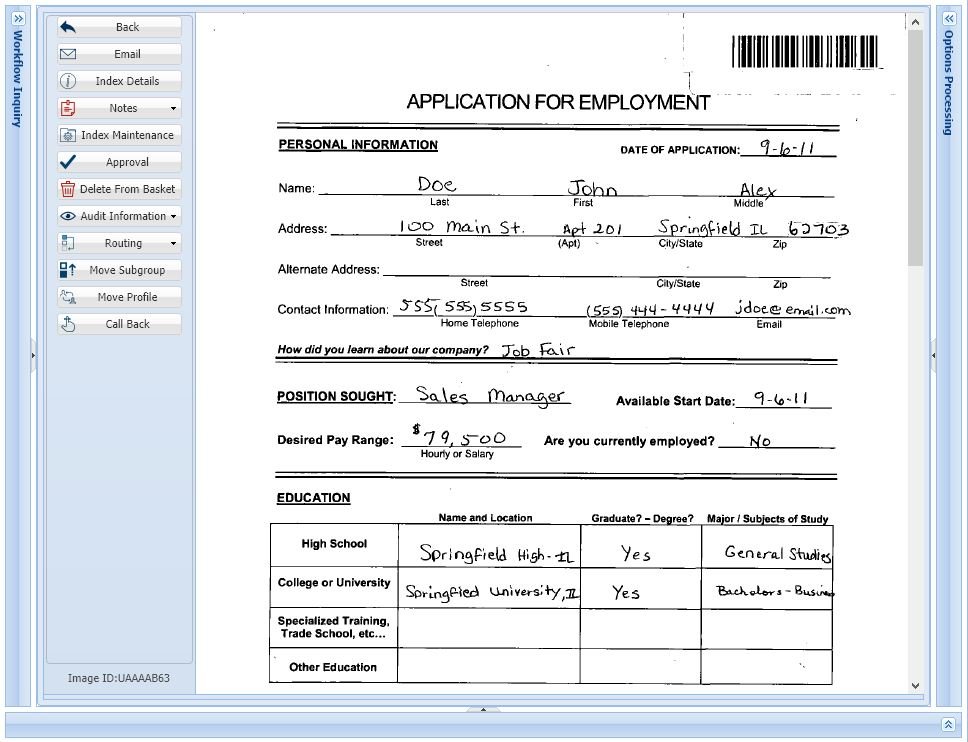
Users have the option to approve and index directly from the display window using the  and
and  buttons or they can return to the system’s workbasket entries using the
  button which provides options for
  and
and  .
.
 |
When accessing the Workflow Inquiry screen, users will have access to functions and symbols to help them navigate their workbasket.
Flags: Symbols under the Flags column inform the user of special conditions associated with the record.
| * | The document has been routed outside the normal routing profile. |
 |
Call Back notice has been entered. A red callback symbolizes the call back notice is overdue. A green callback symbolizes a call back exists. A yellow callback symbolizes the call back notice is due today. |
 |
Notes are attached. |
| 0 – 9 | Indicates priority routing. |
 |
Packages are setup. A green package symbolizes the package is complete. A red package symbolizes the package has missing documents. |
| U | Image was routed from another user. |
 |
Stapled documents are available. View the document()s) stapled to the primary document. |
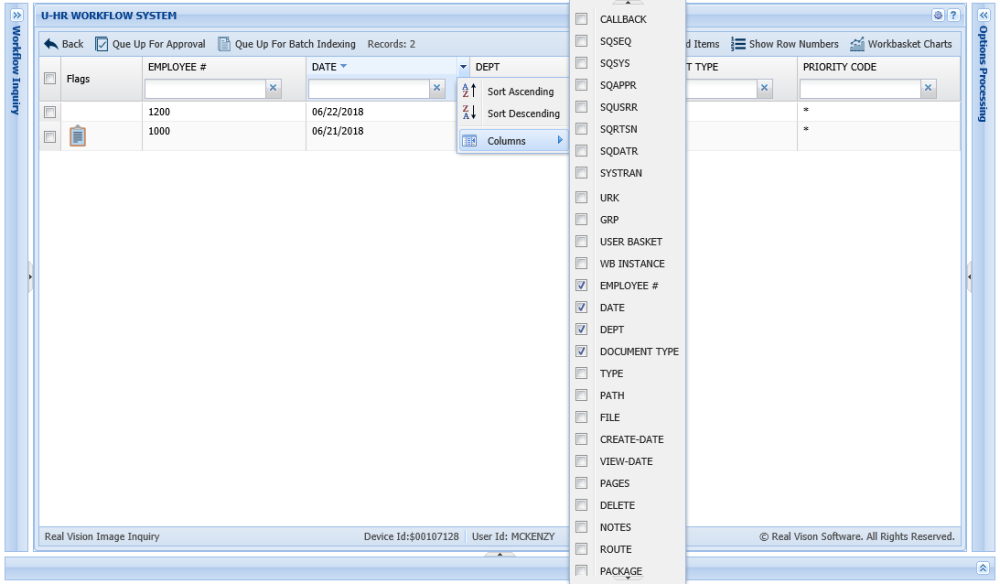
Sort: Sorting allows the user to change the order in which the workbasket items appear. Select the drop down arrow next to the index then choose Sort Ascending or Sort Descending.
 |
Filter: Filtering allows the user to narrow down the list of workbasket items based on index values. Enter the desired index values in the input fields below the index headers.
 |
Columns: Pick the desired columns to be displayed. Select the drop down arrow next to any index then choose Columns.
 |
Post your comment on this topic.