


The Add Attachment feature allows users to attach documents to approvals to give the sender as much information as possible about the rejection or the approval.
To attach files or documents to approvals, follow the steps below:
1. Navigate to an object that needs the user’s approval or rejection
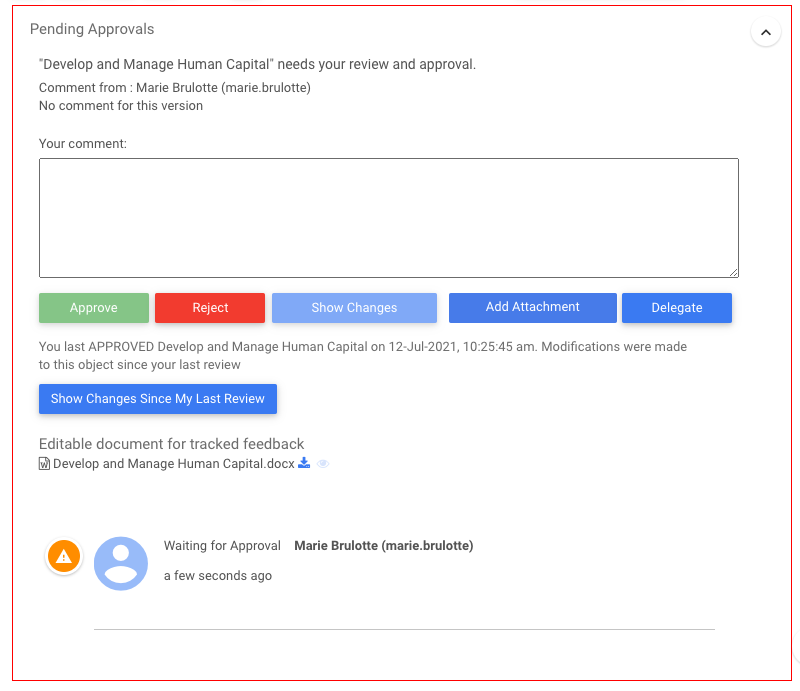
2. Click on the  button
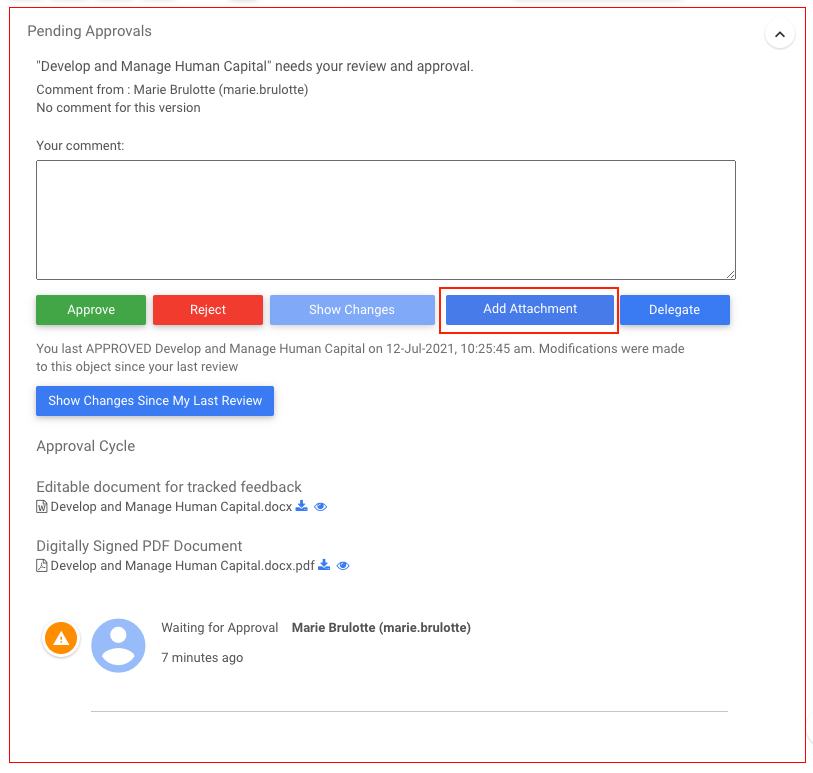
3. Select the desired file
4. The file will appear at the bottom of the pending approval
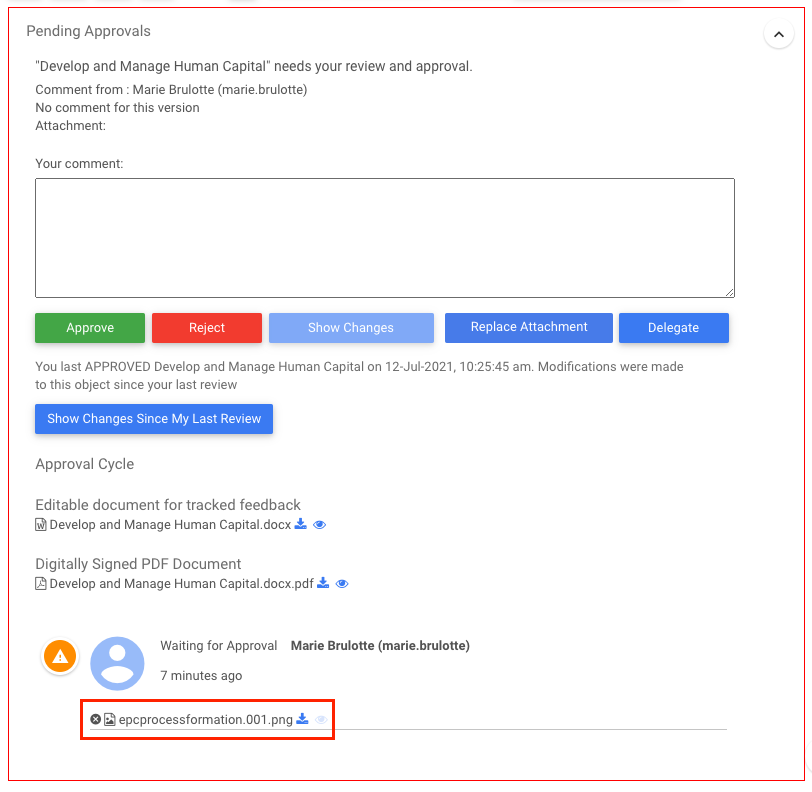
5. The Add Attachment button will now be replaced by the  button. By clicking on it, the user will be able to remove the current attached file and replace it with another one.
6. To delete the attachment and not replace it with another one, click on the X button next to the file name

7. To download the attached file, click on the download button next to the file name

8. To preview the attached file, click on the preview button next to the file name

Haben Sie noch weitere Fragen?
Visit the Support Portal