

The Timeline window is comprised of a series of controls around the tracks window.
Basic Timeline Controls
 Scrolls the timeline view to keep the play head in view
 Opens the insert timeline dialogue to embed one timeline into another. Timelines can also be dragged from the timeline list into the Global Track to embed them.
 Sets the mouse to allow selecting of nodes or groups of nodes.
 Sets the mouse to add values to a track with a single click. Pressing ALT will temporarily set insert mode.
 Sets the mouse to scroll the view by left clicking and dragging.
Transition controls
The transition between two points on a float pin’s track can be set in different ways.
| Note: Only float pins (those going from 0-1) can be faded, other pin types such as integers do not fade. |
 Creates a curve between two points in a track. The Spline’s curve is controlled by modifying the red Spine bar.
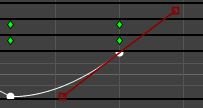
 Linearly fades between the two points.
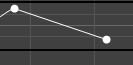
 Snaps from the first value to the second value immediately
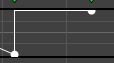
 Snaps from the first value to the second value at the second value.
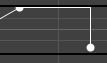
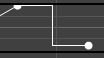
 Snaps from the first value to the second value at the centre point time between the two.
Track Filter
The timeline will show all tracks inside of it by default. For larger timelines this can prove daunting. To temporarily hide tracks, type a filter into the Track Filter box. The filter will hide all pins that do not match the filter text.
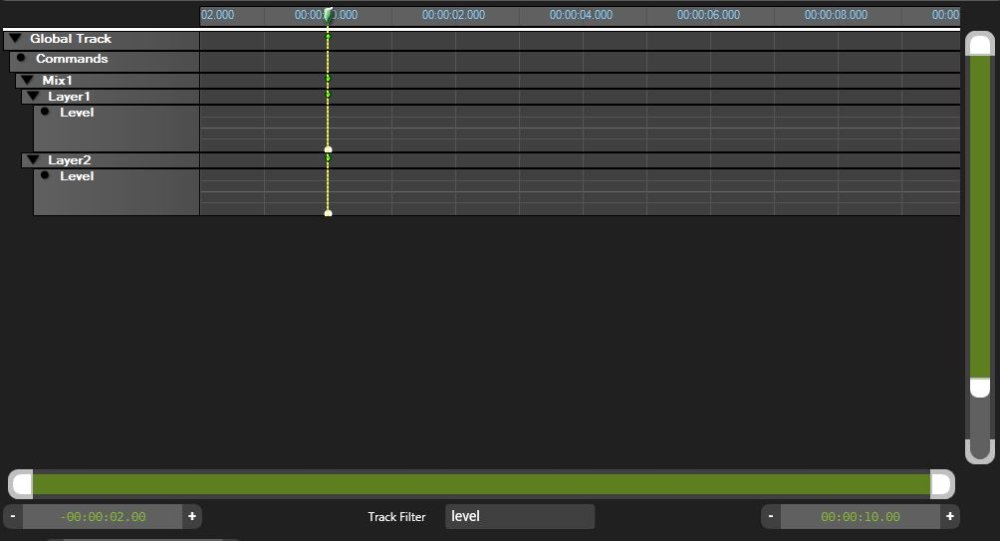
Global Track
The Global contains any timelines that are embedded into the current timeline.

To embed timelines either drag the timeline to be nested into the global track of the current timeline or select the Insert Timeline button.
Command Track
The command track controls how the timeline is played.
To create a command, select insert mode (or press the ALT key) and click in the command track where the desired command should be placed.
New commands will be created matching the command before them, or as blank commands if no commands are before them.
 Event takes no action
 Stops the play head at the action. Pressing Play again resumes the timeline.
 The Play head will jump from the command to either the beginning of the timeline or another event based.
Set command types and edit them by right clicking on them:
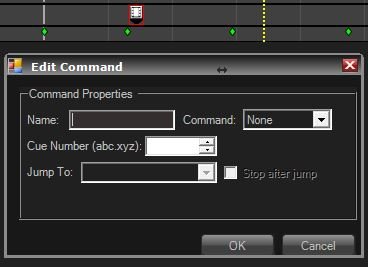
 A jump command that has been named ‘Jump’ and given the cue number 1.
Cue Number
Cue numbers allow Timelines to be started from points within the timeline as required. Cue numbers must unique within the timeline. The Cue number is used by DMX component and Multicontroller to start timelines.
Post your comment on this topic.