


If you need to define a script without writing code associated with it, the design environment is used.
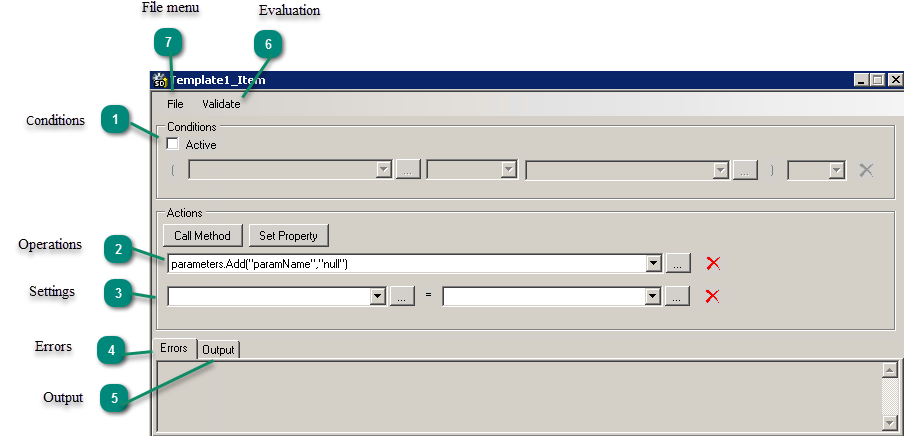
1. Conditions:

If the desired code has conditions, then you can select the conditions after selecting “Enabled” in the enabled boxes.
To insert a bet, first select the active button  and select the desired field using existing services, then select or type the value in the next box by selecting the button .
Note: To add a second bet, in the last box, select one of the words “and” or “or”.
To remove the bet, select the button  next to each bet.
2. Operations:

Each time you select the “Operation” button in the behavior box, an operation box appears. To insert an operation, first select the active button and then select the desired operation using the available services.
To remove behavior, select the button next to each behavior.
3. Settings:

Each time you select the Set Property” button in the Actions box, a setting box appears. To enter the initialization, first select the active button and select the desired field using existing services, then select or type the value in the next box by selecting the button . To remove behavior, select the button next to each behavior.
4. Errors:

In the case of design evaluation, the design errors are displayed in this heading.
5. Output:

The results of the design review shown in this heading are displayed.
6. Evaluation:

By selecting this button, the logic of selected behaviors is examined and the result of the check is displayed in the output tab or errors.
7. File Menu:
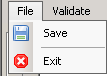
By choosing the file button for storage options, to save the design and exit, you will be able to access the design form to exit.