


To exclude objects, double click on a Filter Set and select the tab for the exclusion type (in this case, Objects was selected). You’ll then click the “Create Filter Values” button seen below where you get a new window to create the rules. Note that you will not be able to update a default Filter Set identified with the  icon
icon

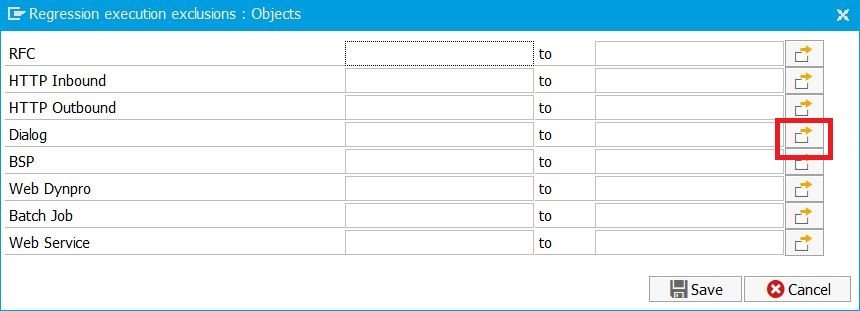
The following window is where you’ll create a rule. You’ll need to click on one of the selection icons (Dialog in the example below) which will take you to a Multiple Selection window.
Once in the Multiple Selecction window, you can choose Single Values or Ranges to either select or exclude. It is far more common to Exclude so the examples below will reflect this scenario. Clicking on the “Exclude Single Values” tab will allow you to enter 1 or more objects to exclude. In the example below, transactions “ZMM02” and “ZMM03” were added.

You can also double click on a row which will open the following window to change the boolean operator from the defaul “=” to another operator.

Once all selections are entered, click the Copy button  which will take you back to the prior screen where you will save your selections. Notice how the Icon changes to reflect multiple values.
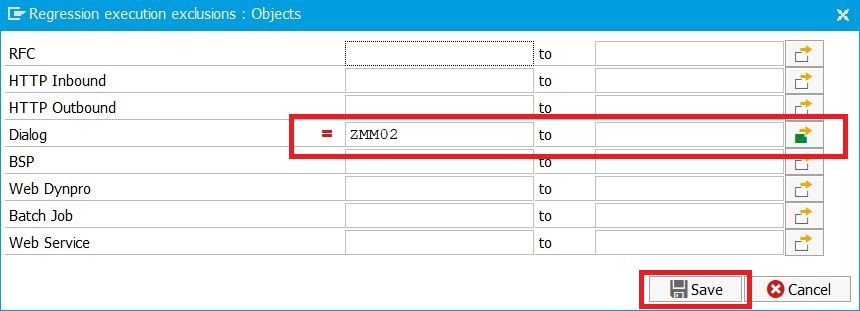
You’ll now see your excluded objects back on the Filter Sets screen. Be sure to active the filter set once you intend to use it.

Post your comment on this topic.